Reduce video file sizes by up to 90% while preserving quality. No watermarks, no sign-up.
Files never stored on our servers Powered by FFmpeg (H.264) No watermarks ever
The last video compressor you'll bookmark
Most online compressors give you a single upload slot, one quality setting, and a pray-and-wait experience. This tool was built for people who work with video every day — batch uploads, per-file overrides, thumbnail extraction, custom naming, and two-pass encoding that actually hits the file size you asked for.
Batch Processing
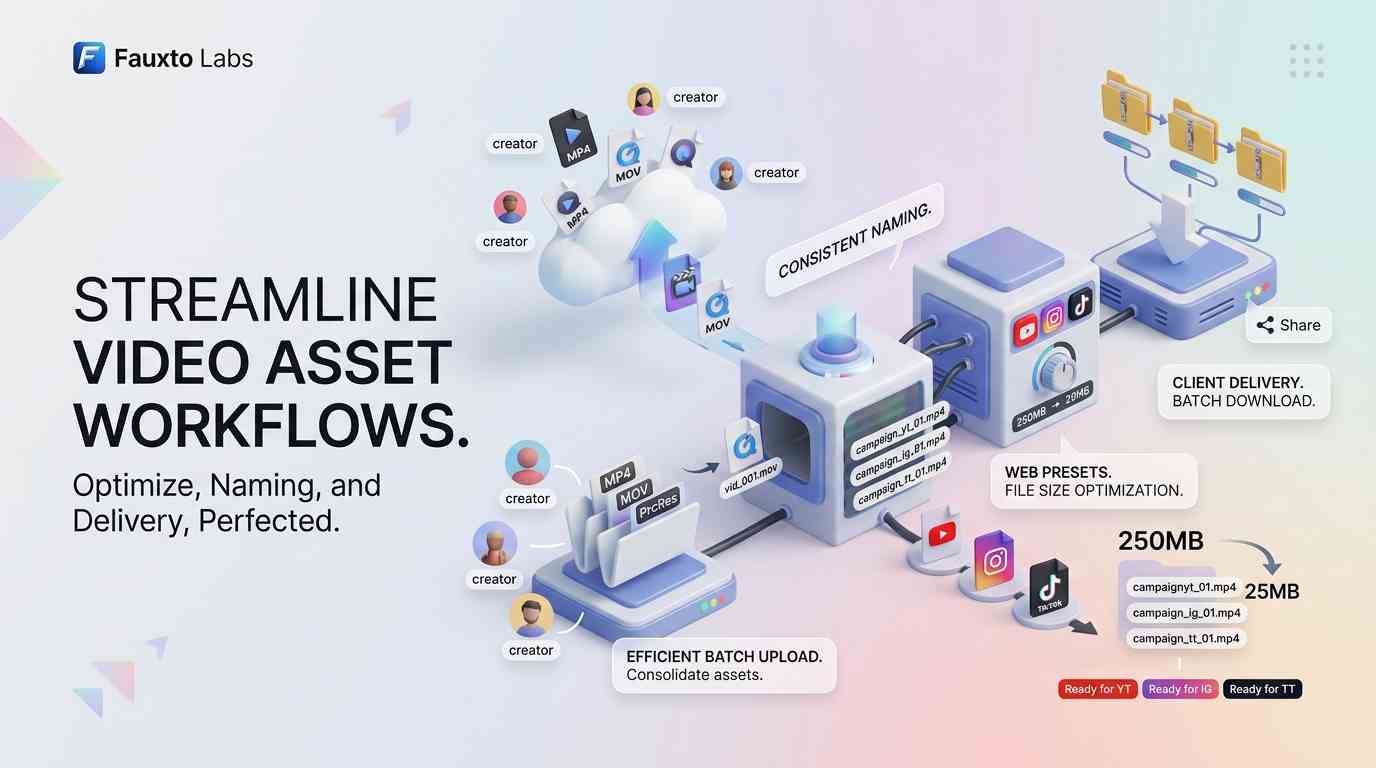
Compress dozens of videos at once
Upload an entire folder of video files and compress them all with a single click. Each video gets its own progress indicator, and results appear as they finish — you can start downloading early files while later ones are still processing.
Unlike most batch video compressors that require desktop software, this runs entirely in your browser backed by server-side FFmpeg. No installations, no waiting for a slow local encode — just upload and go.
Thumbnail Extraction
Extract poster images from any video
Switch to the Thumbnails tab to pull the first frame from each video at your chosen resolution. Export as JPEG, JPG, PNG, or WebP with adjustable quality — perfect for video poster images, social media cards, and e-commerce listings.
Thumbnail extraction runs in your browser using the Canvas API, so the video never leaves your device for this step. Combine it with compression to get both a smaller video and its preview image in one workflow.
Full Control
Global settings or per-video overrides
Set a shared compression preset for the entire batch, then override any individual video with its own quality level, resolution, or target size. A short hero clip can stay at high quality while a long background recording gets aggressive compression — all in the same batch.
The built-in naming scheme lets you define a pattern like product-hero-01.mp4 and every file downloads with consistent, sequential names. No more renaming files after export.
How to compress video files online
Upload one or more video files using the drop zone above. You can drag files directly from your desktop, or click to browse. We accept MP4, WebM, MOV, AVI, MKV, and most other common formats — up to 100 MB per file without an account, or 250 MB if you sign in.
Once uploaded, choose a compression preset — Social Media, Web Optimized, or Email Friendly — or switch to Custom mode for full control over resolution and CRF quality. Each preset uses a different target file size, and our two-pass H.264 encoding automatically calculates the best bitrate to hit that target while preserving as much visual quality as possible.
When you're happy with the settings, hit Compress All and we handle the rest server-side using FFmpeg — the same open-source tool used by YouTube, Netflix, and VLC. Your files are processed in a temporary directory that is wiped immediately after the compressed video is sent back to your browser. Nothing is stored, logged, or shared.
Batch video compressor with per-file settings
Most online video compressors process one file at a time. This tool handles batches — upload ten or twenty videos, configure a shared compression preset, then process them all in sequence with a single click. If individual videos need different treatment (for example, a short clip that should stay higher quality alongside a long recording that needs aggressive compression), you can override the global settings on a per-video basis. Click the “Custom” button on any video card to set its own preset, CRF value, or target resolution independently of the batch.
You can also set up a custom naming scheme before downloading. Choose a prefix (like hero or product-video), a separator, and a start number. The tool will number each output file sequentially — hero-01.mp4, hero-02.mp4, and so on. This is especially useful when preparing assets for a website, social media campaign, or client delivery where consistent file naming matters.
Video thumbnail extraction
Beyond compression, the tool includes a built-in thumbnail extractor. Switch to the Thumbnails tab to pull the first frame from each video at your chosen resolution — original, 1080p, 720p, 480p, or 360p. You can export as JPEG, JPG, PNG, or WebP, and control the quality level for lossy formats. This is useful for generating poster images for HTML5 video players, social media preview cards, or e-commerce product listings where you need a still image that represents a video.
Thumbnail extraction happens entirely in your browser using the Canvas API — the video never leaves your device for this step. Compression, on the other hand, runs server-side because proper H.264 two-pass encoding requires FFmpeg, which cannot run in a browser. This hybrid approach gives you the best of both worlds: client-side speed for thumbnails and professional-grade encoding for compression.
What is CRF, and which setting should you use?
CRF stands for Constant Rate Factor. It's a quality-based encoding mode where you tell the encoder how much quality you want, and it figures out the bitrate automatically. Lower CRF values mean higher quality and larger files; higher values mean more compression and smaller files. For H.264, a CRF of 23 is considered visually lossless for most content — you'd struggle to tell the difference from the original. CRF 28 is a good default that balances quality and size. Going above 34 will introduce visible artifacts, but can be useful when file size is the top priority.
The preset modes (Social Media, Web Optimized, Email Friendly) use a different approach called size targeting. Instead of choosing a quality level, you specify a target file size and the tool calculates the optimal bitrate to hit it. It does this with two-pass encoding — the first pass analyzes the video's complexity, and the second pass uses that analysis to distribute bits efficiently across the video. Scenes with lots of motion get more bitrate; static scenes get less. This produces noticeably better results than single-pass encoding at the same file size.
When to use a video compressor
Video files are often far larger than they need to be for their destination. A 200 MB recording that plays fine on your desktop becomes a problem the moment you need to email it, upload it to a platform with file limits, or load it on a webpage where every megabyte costs your visitors time and bandwidth.
Send by Email
Compress video for email
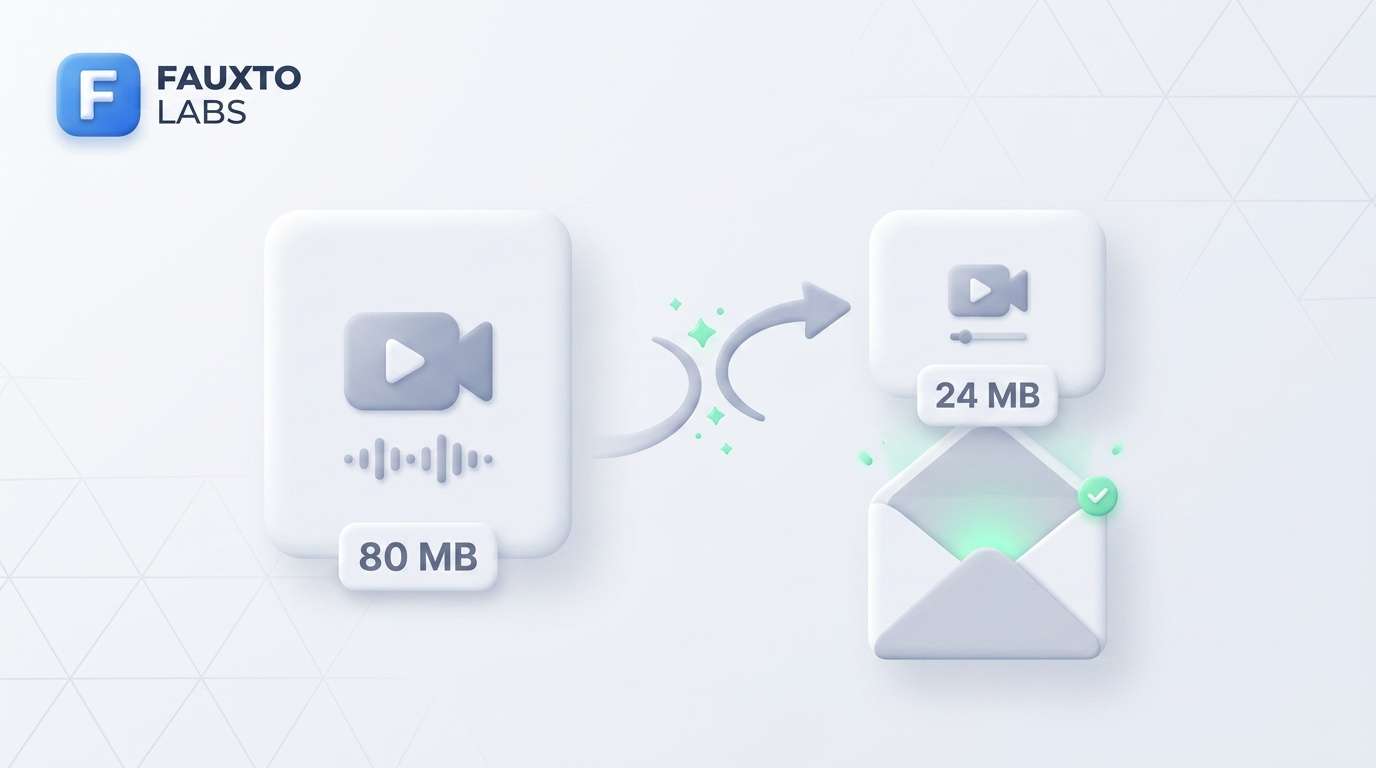
Most email providers cap attachments at 25 MB — Gmail, Outlook, and Yahoo included. A one-minute 1080p recording can easily hit 80 MB or more. Use the Email Friendly preset to target roughly 300 KB per second of video, which keeps a typical 30-second clip well under the limit without noticeable quality loss. No more “file too large” bounces.
Website Optimization
Optimize video for your website
A background hero video that loads in under two seconds keeps visitors engaged. One that buffers for five seconds drives them away. The Web Optimized preset targets around 800 KB for short clips, which loads almost instantly on broadband and stays usable on mobile connections. Pair it with the thumbnail extractor to generate a poster image that displays while the video loads — a standard best practice for web performance.
Social Media
Compress video for social media
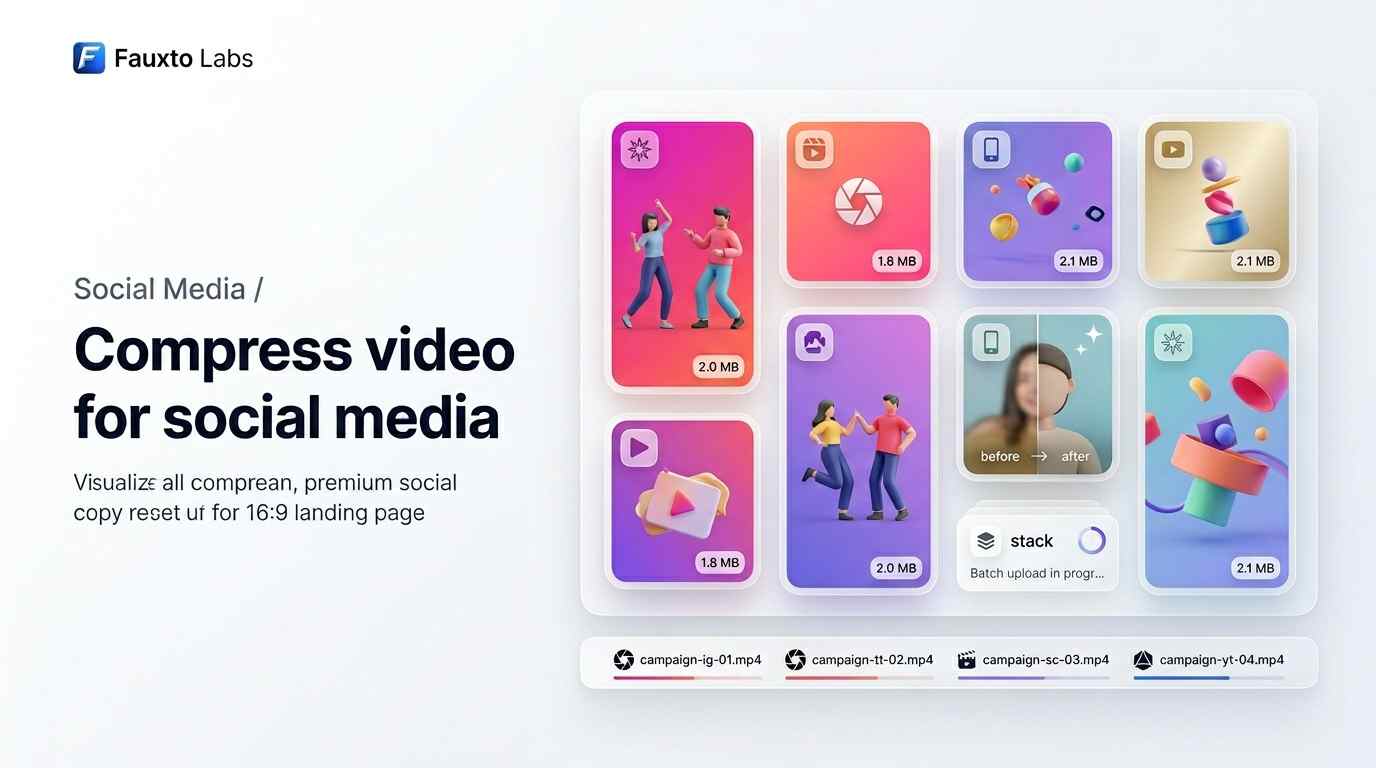
Instagram, TikTok, Twitter, and LinkedIn all re-encode your uploads, but starting with a well-compressed source file means less generation loss in the final post. The Social Media preset targets around 2 MB — large enough to preserve detail but small enough for fast uploads, especially when you're publishing multiple clips in a batch. Use the custom naming scheme to label exports by platform or campaign.
Discord & Messaging
Compress video for Discord
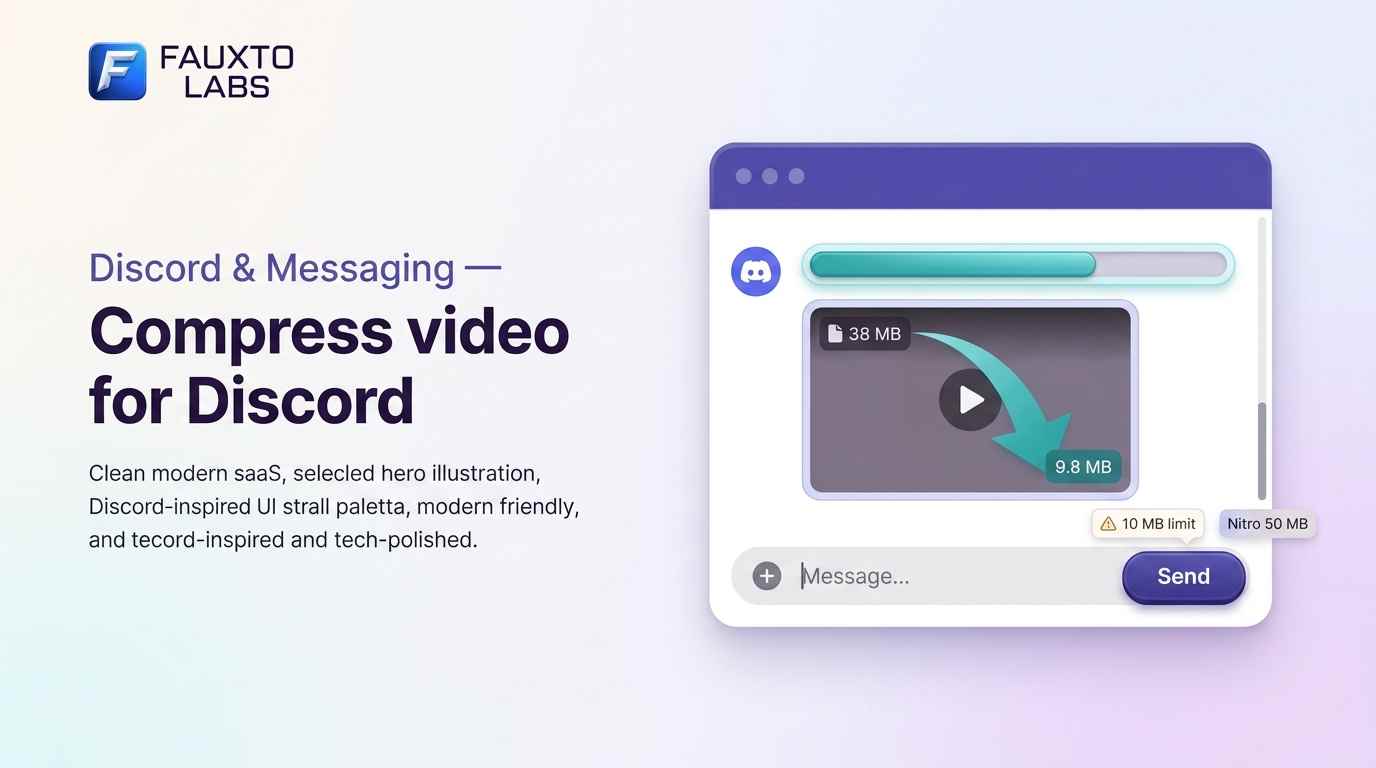
Discord's free tier limits uploads to 10 MB — Nitro raises it to 50 MB, but even that is tight for anything longer than a few seconds at decent quality. Use the Email Friendly preset or switch to Custom mode and target a specific file size. A 30-second gameplay clip can fit under 10 MB at 480p with CRF 30 and still look sharp in a chat window.
Save Storage
Free up storage space
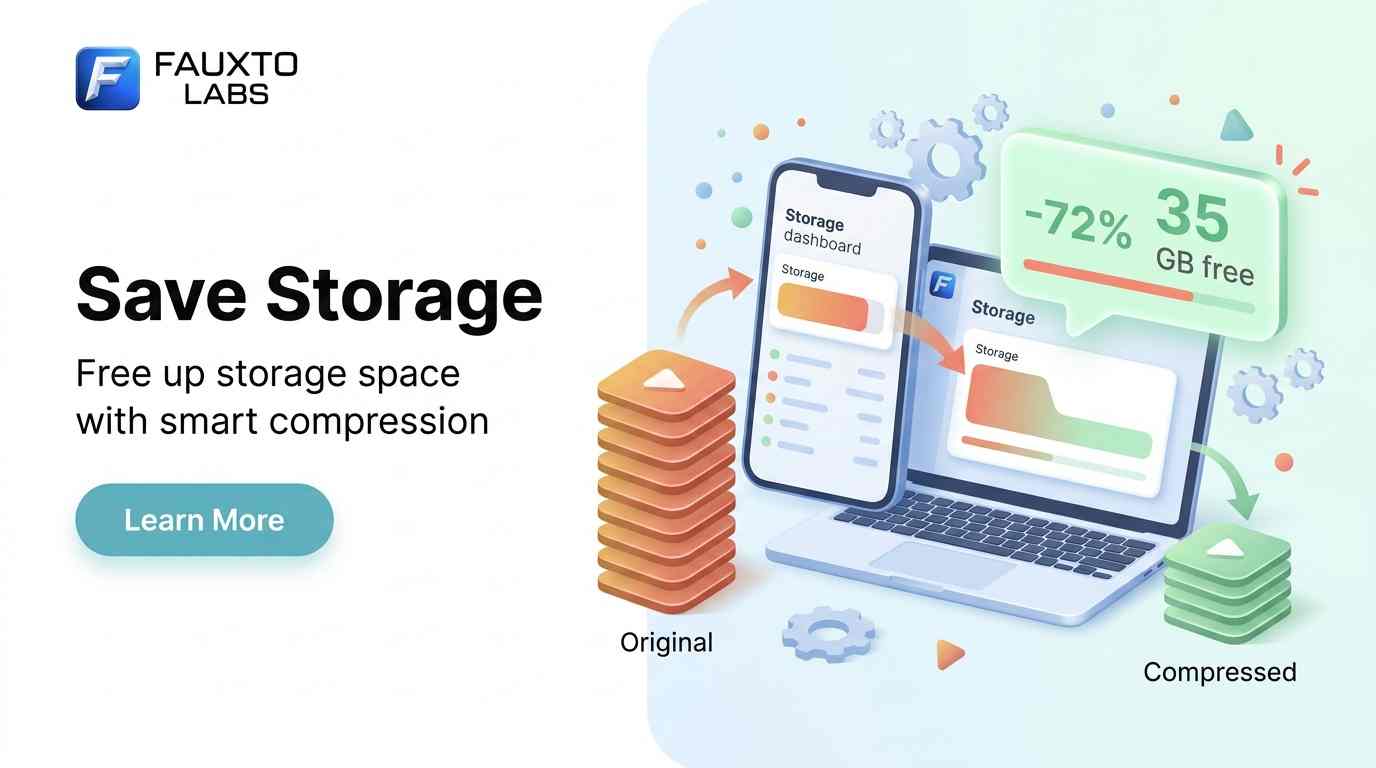
Phone recordings, screen captures, and project exports accumulate fast. A weekend of 4K footage can eat 50 GB before you know it. Batch compress your archive at CRF 28 and 720p to reclaim 70–90% of that space with minimal visible difference — especially for reference footage you don't plan to edit further. The original quality is overkill for playback; the compressed version is not.
Client Delivery
Prepare video deliverables
When handing off video assets to a client or team, file size and naming consistency matter. Upload the batch, set the naming scheme to match the project convention (like acme-promo-01.mp4), choose the Web Optimized preset for web-ready files or Custom for specific bitrate requirements, and download the entire set. Every file arrives properly named and sized for its destination.
Privacy and security
Your videos are uploaded to our server over an encrypted HTTPS connection, written to a temporary directory, processed by FFmpeg, and returned to your browser as a download. The temporary files are deleted immediately — both the input and the output — whether the compression succeeds or fails. We do not keep copies, queue them for later processing, or analyze their content. There is no tracking pixel in the output files and no watermark of any kind.
Rate limiting is applied per IP address (10 compressions per hour for anonymous users, 30 for signed-in users) to prevent abuse and keep the service fast for everyone. If you need higher limits for a production workflow, signing in is free and instantly raises your cap.
More than a video compressor
This tool is built and maintained by Fauxto Labs, an AI creative platform with over 50 tools for generating and editing images, video, music, voice, and 3D content. If you're compressing video for a website, social media, or a client project, there's a good chance the rest of our toolkit can save you time too.
Our AI Video Generator lets you create cinematic video clips from a text description — up to 12 seconds in 1080p using models like Seedance 2.0 and Kling. The AI Image Generator supports Flux, GPT Image, and the Nano Banan model family for unparalleled image accuracy and consistency. And the AI Music Generator produces original, royalty-free tracks from a text prompt — useful if you need background audio for the videos you're compressing here.
Beyond generation, we offer tools for image effects (background removal, upscaling, inpainting, style transfer), lip sync, video effects, AI storyboarding, and a full canvas editor. Everything works inside a single workspace with one credit balance. You get 100 free credits when you sign up — no credit card required.
Yes. There are no hidden charges, no watermarks on output, and no sign-up required. Anonymous users can compress up to 10 videos per hour with a 100 MB per-file limit. Creating a free account raises those limits to 30 compressions per hour and 250 MB per file.
How is the compression done?
All compression runs server-side using FFmpeg with the libx264 codec (H.264). When you choose a size-target preset, the tool calculates a video bitrate from your target file size and duration, then encodes with a constrained average bitrate (ABR) — using maxrate and bufsize limits so the output stays close to the target without exceeding it. In Custom mode, you set a CRF (Constant Rate Factor) value and the encoder adjusts bitrate automatically to maintain consistent quality.
Are my files stored or shared?
No. Your video is uploaded to a temporary directory, processed, and the compressed output is streamed back to your browser. Both the input and output files are deleted from the server immediately afterward — whether the compression succeeds or fails. We don't log filenames, analyze content, or retain any data.
What video formats can I upload?
MP4, WebM, MOV, AVI, MKV, and most other formats that FFmpeg supports. The output is always MP4 with H.264 video and AAC audio, which plays natively in every modern browser, phone, and video player.
Does it work on mobile?
Yes. Because the heavy lifting happens on the server, your phone or tablet only needs to handle the upload and download. You don't need to install anything — just open this page in your mobile browser, upload a video, and download the result.
Can I compress multiple videos at once?
Yes — this is one of the tool's strengths. Upload as many files as you want, configure shared compression settings (or override them per video), set up a custom naming scheme, and hit Compress All. Each video is processed sequentially with individual progress tracking.
What is two-pass encoding and why does it matter?
Single-pass encoding guesses how to distribute quality across your video. Two-pass encoding does an analysis pass first, measuring the complexity of every scene, then uses that data in the second pass to allocate more bitrate to complex scenes (fast motion, lots of detail) and less to simple ones (static shots, solid backgrounds). The result is noticeably better quality at the same file size — or a smaller file at the same quality.
Can I extract thumbnails without compressing?
Yes. Switch to the Thumbnails tab to extract first-frame poster images from each video in JPEG, JPG, PNG, or WebP format at any resolution. Thumbnail extraction runs entirely in your browser — the video doesn't even need to be uploaded for this step.
Free Video Compressor - Reduce Video File Size Online | Fauxto Labs